User Guide
Main Screen

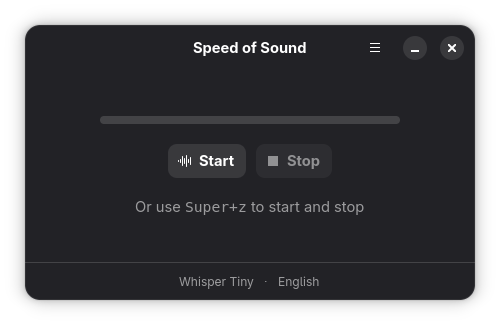
The main screen is divided into two halves. The top half contains a progress bar that reacts to your voice while you speak and shows transcription progress as Speed of Sound processes your audio. If you have an LLM text model configured, the progress bar will also reflect the polishing step.
The bottom half displays the currently selected voice model, text model, and expected input language. The gear button opens a menu where you can access Preferences, Keyboard Shortcuts, the About screen, or quit the application.
Recording limit
Each recording is capped at 30 seconds. When the limit is reached, transcription starts automatically.
System Tray
Speed of Sound includes a system tray icon on desktops that support it, such as KDE Plasma and XFCE. This uses the standard FreeDesktop specification, so it works with any compatible desktop. Left-clicking the icon opens the main window, right-clicking shows a context menu with options to start or stop listening, open the app, or quit.
This is especially useful in combination with Stay hidden on activation and Record in background (see Preferences below), which let the app run entirely in the background with the tray as your primary access point.
GNOME users
Some GNOME-based distributions do not display status tray icons by default. On Ubuntu, the AppIndicator Support extension comes pre-installed and the tray icon will appear automatically. On other distributions, like Fedora, you will need to install that extension manually to see the tray icon.
Keyboard shortcuts
Most shortcuts are only active when the Speed of Sound main window is open and focused. The exception is Super+Z
(configurable, and shown below as an example), which is the global shortcut you will use day-to-day to start and stop
dictation from any application.
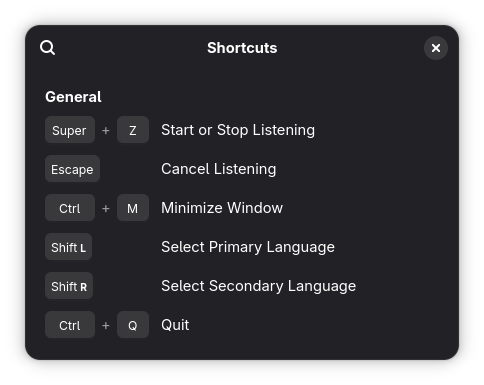
| Shortcut | Action |
|---|---|
Super+Z |
Start or stop dictation (global, configured in Getting Started) |
Ctrl+S |
Start or stop listening (while the app window is focused) |
Escape |
Cancel listening |
Ctrl+M |
Minimize window |
Left Shift |
Select primary language |
Right Shift |
Select secondary language |
Ctrl+Q |
Quit |
A quick reference is also available from within the application. Tap the gear icon on the main window and select Keyboard Shortcuts to open the shortcuts dialog as a reminder while you work.

Preferences
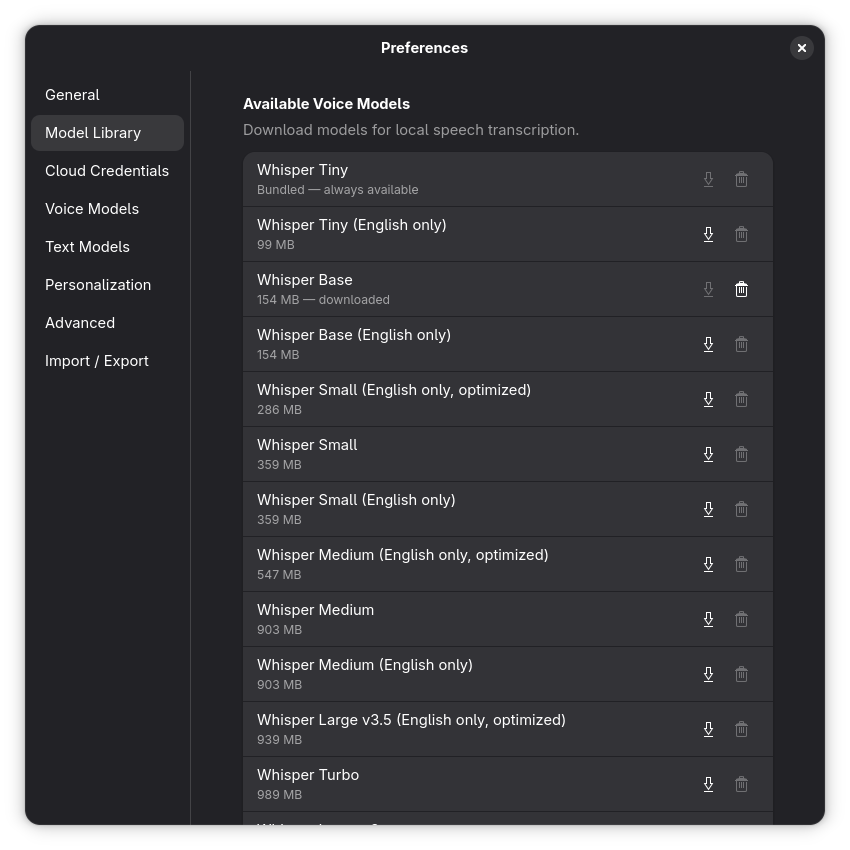
The Preferences dialog gives you control over how Speed of Sound behaves, from language selection and model configuration to personalization and backup.

General
There are 4 groups of settings here: Global Shortcut, Language, App Behavior, and Output.
Global Shortcut — Described in more detail on the Set Up a Keyboard Shortcut page.
Language — Set the primary language used for speech recognition. You can optionally configure a secondary
language and switch between the two using the Left Shift and Right Shift keys while the main window is focused.
Regional spelling and vocabulary variants
ASR models do not distinguish between regional variants of the same language (e.g. British vs. Australian English, or Spanish from Spain vs. Colombia). If you need region-specific spelling or vocabulary, enable text polishing (see below) and instruct the LLM accordingly in the Personalization settings.
Non-Latin scripts may require a matching keyboard layout
If you dictate in a non-Latin script using the Keyboard simulation text output method (default), make sure the matching keyboard layout is active on your system before dictating. The Clipboard method bypasses this requirement. See Troubleshooting for details.
Output — Two settings control how transcribed text is delivered to the active application:
-
Text output method — Choose between Keyboard simulation (default), which simulates keyboard input character by character via the XDG Remote Desktop Portal, and Clipboard, which copies the text to the clipboard and pastes it with
Ctrl+V(also via the portal). The clipboard method is a useful fallback when the portal method drops or reorders characters, or when dictating in non-Latin scripts where keystroke simulation does not work correctly. -
Append space after transcription — Automatically inserts a trailing space after each result, which is useful when dictating consecutive sentences independently.
App Behavior — Configure the general application flow:
-
Enable Stay hidden on activation to launch the app without showing the main window. This is useful when adding Speed of Sound to your system's startup applications, the app will be ready in the background immediately, and you can begin dictating using the shortcut without any window appearing first.
-
Enable Record in background to keep the main window hidden during recordings. In this case, the pipeline runs entirely in the background. You can still access the window at any time from the dock or the system tray.
-
Enable Hide instead of minimize to hide the main window instead of minimizing it when not in use. This is useful on multi-workspace setups where you want the window to restore on the current workspace.
Model Library
Browse and manage the locally available voice models. You can download new models or remove ones you no longer need. Keep this window open while a download is in progress.
Cloud Credentials
Store API keys for cloud services. Speed of Sound supports Anthropic, Google, and OpenAI directly, as well as any third-party provider that offers compatible endpoints, such as OpenRouter. Credentials saved here can be referenced when configuring voice or text model providers.
Cloud providers are optional
Using cloud providers is entirely optional and not required to use Speed of Sound. This feature is intended for devices with limited hardware resources that cannot run models locally, or for cases where a large cloud-only model is needed to meet specific accuracy or latency requirements. See the FAQ for more information.
Voice Models
Configure the speech recognition provider used to transcribe your audio. By default, Speed of Sound transcribes locally using an on-device model (Whisper by default). Multiple model families are available, including Whisper, Parakeet, and Canary. You can also add cloud-based providers and select which one is active.
Text Models
Optionally enable an LLM to post-process your transcriptions for improved accuracy, grammar, and formatting. You can add one or more providers and choose which one is active. This step is disabled by default.
Personalization
Provide optional context to improve transcription quality. You can, for example, add information about your writing style and add custom vocabulary entries such as names, technical terms, or acronyms that the model should recognize.
Advanced
Fine-tune low-level typing behavior. You can adjust the delay between hiding the main window and issuing keystrokes, as well as the delay between individual keystrokes. These settings only apply when using the Keyboard simulation text output method. The defaults work well for most desktop environments and do not normally need to be changed.
Import / Export
Back up your preferences to a file, useful to set up Speed of Sound on a different machine.